Tutorials For How To Work

TechnoSurvive is the best Computer Knowledge based Blog. Where you know about computer related problems and solutions. Computer hardware and software problem are describe here. Find your solution here.

Monday, May 7, 2018


 How to Create a privacy policy for blogger or Blogspot blog


For complete a blog, you need to make some essential page for your blogger or Blogspot site. Contact Us page, Privacy policy, About Us, Sitemap is mandatory page part to start up your blog. Make your privacy policy page for your Blogspot blogger site.

How to make privacy policy page?

For making privacy policy page first you need to go to privacy policy generator website that makes your work easy and you can create is very first. You just input some information about your blog that you help to make privacy policy or generate privacy policy HTML.
First, you need to create a blank privacy policy page. After generating privacy policy you paste privacy policy article or HTML code to this page.

Your Site Information and Contact

Input site Information and Contact Information for your blogger website. Input cookies information and Info about Advertises on your site.
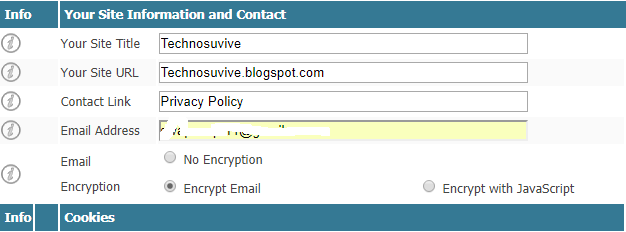
Privacy policy generator part-1


Privacy policy generator part-2


Then Finally Generate privacy policy or Generate HTML for blogger. After generating just copy your generated article or HTML code to your blogger privacy policy page. You can generate either article or HTML as your wise.


Friday, April 13, 2018

Computers have become an integral part of our everyday life. We use
them every day to be aware of what happening in the world, to make
some complicated calculations, to search for information of simply to
figure out where is Xur from the Destiny. But how much do we know
about these smart machines? Here are some facts that can blow your
mind, so get ready for the blast!

1. Do you know that the first computer was so huge, that its weight
about 27 tons and its size was around 1800 square feet? If you do not,
Google the ENIAC and find out more.


2. Computers are the biggest wallet of the world. Around 90% of
world's money exist on computers and only 10% is physical money.

3. If you would like to type the longest word using the letters on the
one row of your computer keyboard, this word would be TYPEWRITER.

4. The first computer mouse was invented in 1964 by Doug Engelbart.
The most interesting fact about the first mouse is that it was made of
wood.

5. We want our computer to be safe and install various antiviruses.
But did you know that every month the computer world sees more than
5000 new viruses? Bwa-ha-ha!

6. The most powerful computers in the world are our brains. If there
was an analog to the human brain, presented by the machine, it would
be able to do 38 thousand trillion operations per second! If it is not
enough, add 3580 terabytes of memory.

7. Did you know that people who write viruses, in the most cases work
for organized crime syndicates? No jokes.

8. This fact is quite inspiring. Such world known companies as HP,
Microsoft, and Apple, started their business in a garage.

9. If you need to figure out why your eyes get tired after using a
computer, here is the explanation. Normally, a person blinks about 20
times per minute. But if you are sitting in front of a blue screen,
the number of blinks decreases to 7 per minute.

10. The last fun fact is that Bill Gates, the founder of Microsoft
Corporation, lives in a house that was created with the help of
Macintosh computer.

Wednesday, January 24, 2018

How to disable windows 10 update setting


This is new feature of windows 10 that it will update windows feature automatically. As a result, we get all feature updated and PC has safe from Virus or harmful software. It's also update our farm-work and security setting automatically that is needed for our updated version of software and killing our error bug.
Disable Windows 10 Update Setting Permanently
Disable Update setting

Who use limited data from modem, it is also expensive for them. This will update hidden and automatically. So they can't sens that their data is charged without any permission till they check their credit amount.
It is also annoying that when you want to turn off your PC because then you can't turn off your PC instant until your update completed. As a result, there are many user want to turn off their windows update setting disable. But it is really so Tuff to find out update disable option.

To stop windows 10 update you need to do this. Just follow this process step by step.


Step 1: Search your search option as "Windows Update"
Step 2: Click to Windows Update settings.
Step 3: Go to Advanced Options
Step 4: Find out and click to "Delivery Optimization"
Step 5: Allow download from other option as "off"
 
           Step: 3 Image
Windows Update Permanently for Windows 10
Advance setting
     Step: 4 Delivery Optimization Image
Windows Update Permanently windows 10
Delivery Optimization


Then go to again search option and type "Services"
Find out Windows Update option, for shortcut click W button for find it quickly.
Step 1: Double click to "Windows Update"
Step 2: Startup type: Disabled
Step 3: Click "OK"

Screenshot for Disable windows update for windows 10 are given bellow:


            Step 1: Services Image


windows 10 update setting
Services Options
                 Step 2: Startup type: Disabled

Disable windows 10 update Permanently
Startup type: Disabled


                 Step : After Disabled 
Disable Windows 10 Update
After Disabled 


-----Done-----

Your windows update is disabled. You have also another post for removing windows 10 active windows watermark.

You can also follow the video tutorials step by step:


Saturday, January 20, 2018

How to remove windows activation watermark for windows 7, 8, 8.1, 10


Active your Windows all version. It is fully safe and you can use this without any harmful effect for your system files. You can active your all kinds of windows like Windows 10, Windows 8, Windows 8.1  by following a simply tricks of a windows activation tool. After installing a windows on your PC you show a Windows activation watermark on your right side of your display.

Windows-activation-watermark-remove
Windows activation watermark


It is annoing for you that it could be showing you a black display or it will remove your custom wallpaper that you set on your display. Remove this watermark within 1 minute.

What would you need to remove this watermark for windows?


Step 1: Just download activation tools. If you can't download, just deactivate your windows defender.

Step 2: Install this tools. When installing please disconnecting your internet connection and run as administrator.

Step 3: After installing just restart your computer. Work done that you want.

Now check that your right side watermark removed. You can follow the video step by step that given bellow.


Which versions of windows it works:

►►Windows 10 Professional
►►Windows 10 Enterprise
►►Windows 10 Home

►►Windows 10 Professional N
►►Windows 10 Enterprise N
►►Windows 10 Education
►►Windows 10 Education N
►►Windows 10 Enterprise 2015 LTSB
►►Windows 10 Enterprise 2015 LTSB N
►►Windows 10 Home N            
►►Windows 10 Home Single Language
►►Windows 10 Home Country Specific

►►Windows 8.1 Professional
►►Windows 8.1 Professional Wmc
►►Windows 8.1 Professional_N
►►Windows 8.1 Enterprise
►►Windows 8.1 Enterprise_N
►►Windows 8.1 ProfessionalPreview
►►Windows 8.1 Preview
►►Windows 8.1 CoreARM
►►Windows 8.1 Core
►►Windows 8.1 CoreN
►►Windows 8.1 CoreSingleLanguage
►►Windows 8.1 CoreCountrySpecific
►►Windows 8.1 EmbeddedIndustry
►►Windows 8.1 EmbeddedIndustryE
►►Windows 8.1 EmbeddedIndustryA

►►Windows 8 Professional
►►Windows 8 Professional N
►►Windows 8 Enterprise
►►Windows 8 Enterprise N
►►Windows 8 ProfessionalPreview
►►Windows 8 PreRelease
►►Windows 8 ProfessionalWMC
►►Windows 8 CoreARM
►►Windows 8 Core
►►Windows 8 CoreN
►►Windows 8 CoreSingleLanguage
►►Windows 8 CoreCountrySpecific
►►Windows 8 EmbeddedProfessional
►►Windows 8 EmbeddedEnterprise

►►Windows 7 Professional
►►Windows 7 Professional N
►►Windows 7 Professional E
►►Windows 7 Enterprise
►►Windows 7 Enterprise N
►►Windows 7 Enterprise E

►►Windows12R2Server Standard
►►Windows12R2Server Datacenter
►►Windows12R2Server Standard Core
►►Windows12R2Server Datacenter Core
►►Windows12R2Server Cloud Storage Core
►►Windows12R2Server Cloud Storage
►►Windows12R2Server Solution Core
►►Windows12R2Server Solution

►►Windows12Server Standard
►►Windows12Server Datacenter
►►Windows12Server Standard Core
►►Windows12Server Datacenter Core
►►Windows12Server Core
►►Windows12Server CoreN
►►Windows12Server Multi Point Standard
►►Windows12Server Multi Point Premium

►►Windows Vista Business
►►Windows Vista Business N
►►Windows Vista Enterprise
►►Windows Vista Enterprise N


►►Windows08R2Server Standard
►►Windows08R2Server Enterprise
►►Windows08R2Server Data Center
►►Windows08R2Server HPC
►►Windows08R2Server Web

►►Windows08Server Standard
►►Windows08Server Enterprise
►►Windows08Server Data Center
►►Windows08Server HPC


Requirements:
Net Framework 2.0
Internet Connection (To Update KMS online server for work)

Thursday, January 18, 2018

How to Increase My C drive disk size


Now you can Increase your C: Drive size without setup windows or any software from Disk management. If you think your C Drive is over or you need more space for any big size software installation, you can add more space with C Drive.

Because, Your Local Disk C: is more important for speed Up your computer. Now speed Up your computer by increasing your C: Drive size quickly. Red signal for your windows installed drive is very harmful for your computer. It can damage your PC as well as destroy your important file.

For preventing this just doing this simple work. First go to your control panel and find computer management option or simple search your search option by typing "Disk Management" as a result you found "Create and format hard disk partitions" option.

After finding disk management option you choose your existing drive that your want to add with your C: Drive. I also tell about how to create a new drive to another post. Then deleting your empty space, go to your windows Installation C: Drive.


 Click to your right side of your mouse and then click to Extend Volume option. Follow the process by clicking "Next" till "Select Disks Volume". Now simply type your required file size in MB unit that you want to add.

Example,
You want to add 2GB with your C: Drive

For this,
2GB= 1024*2=2048
For 3GB Space, 3GB=1024*3=3072


Then click "Next" button till show "Finish". When Show finish option, your think that your your is 99.99% done and then click to Finish option, Your work is 100% done.

Your windows C: Drive is increased finally.

OR, You can follow the video step by step.

Wednesday, January 17, 2018


How to Create a new Drive form My Partition Without Formatting | TechnoSurvive


You can make a new drive to existing volume by watching this video. For making a new drive first you need to search by typing disk management or you can get this from control panel option.

After searching disk management you get create  and format hard disk partitions. You would choose your existing drive where you thing that a maximum empty size are existing for making new drive.
Choose a drive and click right button then you will get shrink volume option and you get message like video. Where you need to select your drive size less than existing drive size.

Example:  You want to make 2GB drive size for your documents
as a result Enter the amount of space to shrink in MB
1024*2=2048
For 3GR size

1024*3=3072


Then Click to Shrink option. You get an Unallocated drive. For activating this drive again click mouse right button and then click to "New Simple Volume" and Click Next option for complete your process. Where you get chance to Rename or choose drive name option or you can change it later.

When completed your process you finally get a new hard drive that you want.
Just follow the video step by step, You can make a Hard drive volume without any losse, formate or delete your of Important files. Work Done. Just Cool.

Thanks.

Sunday, October 2, 2016

Hello Guys! How are you
Now I will want to know you about
Socialblade addons\Extension

This is about an mcn that means multi-channel network

For this add-ons ###first you have to need to download this add-ons to your crome browser
Then you need to resister by an email
#####What can You Know######
#you can know about details the grade of your channel
Subscriber rank and video view rank
#you can check your channel is under any msn >>>Network\claimed by
# The number of subscribers about last 30days that you gain from channel
#Total views of last 30 days of that video
#the daily avarage subscriber of your channel
#the dailly view avarage
#Subscriber you get today
#Views of today of this video


Moreover you can views the tags of any videos

Thankyou.